TEXTTOSTL

Compare workflows

Choosing a text to stl alternative online

The right alternative depends on what you need to make: a quick nameplate, editable lettering or a model ready for your particular printer. Compare the whole workflow, including any export and repair steps, before switching tools.

Examples of three-dimensional lettering and printable text designs

Total-cost table

Treat each card as a cost checklist, not a price quote. Check access terms, export options, software requirements and the work left before printing.

Occasional nameplate maker

A browser-based 3D text tool can spare you a CAD setup for a short label. Compare the tool’s current access terms with its export options; a useful-looking preview has little value if you cannot obtain a file your slicer accepts.

Best fit when convenience matters more than detailed control. Allow time to inspect letter connections, backing and scale after export rather than counting the preview as a finished print.

free text to stl online

Repeat keychain maker

Making several names changes the cost calculation. A reusable CAD template takes more effort upfront but may make later changes to holes, backing thickness and spacing easier than rebuilding each design in a simple generator.

Compare the effort per finished keychain, not just the first design. If every name needs manual repair, the supposedly quicker alternative may cost more of your time.

text to stl keychain

Printer operator

An STL file is only an intermediate result. You still need a slicer, suitable material and a printer; failed first layers or unsupported letters can outweigh any saving made during model creation.

Budget for a test slice and, when necessary, a small trial print. Comparing model-making with printing as if they were interchangeable hides these downstream costs.

text to stl vs 3d printing

Custom sign designer

Signs with several text sizes, curved layouts or mounting features often need more than a basic text extrusion. CAD software may demand more learning time, but it can keep those dimensions and features editable.

Choose the workflow that preserves the edits you expect to make. A one-off simple plaque and a family of coordinated signs have different total costs.

text to stl for 3d printing

Where quality differs

Judge the geometry in a slicer, not only by how smooth the lettering looks on screen.

Inspect the letter shapes

Thin strokes, tiny counters and narrow gaps can disappear at the chosen print size. Try a heavier font or larger lettering if the preview shows fragile details. A generator may make attractive text, but only a slice at your intended scale reveals whether those details survive.

Check how the text connects

Letters that touch only at a point may become separate pieces. For a sign or keychain, inspect the backing and each letter’s attachment to it. CAD offers direct control over these joins; a simpler text workflow may need a separate editing step.

Verify the exported mesh

Before printing, check that the file is available in a slicer-compatible format and that the sliced model has no missing faces or unexpected gaps. If the tool provides a preview but not a suitable export, the visual result alone does not complete a text to stl workflow.

When switching is worth it

Switch for a specific missing capability, not just a different preview. The linked 3D text tool may help you explore lettering, but confirm its current export options before relying on it for an STL.

It cannot guarantee an STL export

The linked destination is a 3D text generator; its available downloads and access terms may differ from what a dedicated STL converter offers. This page cannot turn an unsupported output into a printable STL.

WorkaroundCheck the destination’s current export controls before designing. If STL is unavailable, use a workflow with a confirmed STL export.

It cannot validate your printer setup

A text model does not establish that your nozzle, material, orientation and support choices will reproduce every stroke. Preview quality and print quality are separate tests.

WorkaroundSlice at the intended size, inspect each layer and print a small sample before committing to a larger sign.

It cannot replace detailed CAD editing

Precise mounting holes, fit tolerances and reusable parameters may call for CAD even if the lettering began in a simpler tool. Changing tools will not remove the need to specify those measurements.

WorkaroundUse the text tool for an initial shape, then finish dimension-critical features in CAD when the export permits it.

It cannot repair every font

Some typefaces contain strokes or enclosed details that become too small at print scale. Choosing another generator will not necessarily solve a physical size constraint.

WorkaroundIncrease the lettering size, choose sturdier shapes or redesign narrow details before exporting.

Compare the workflow

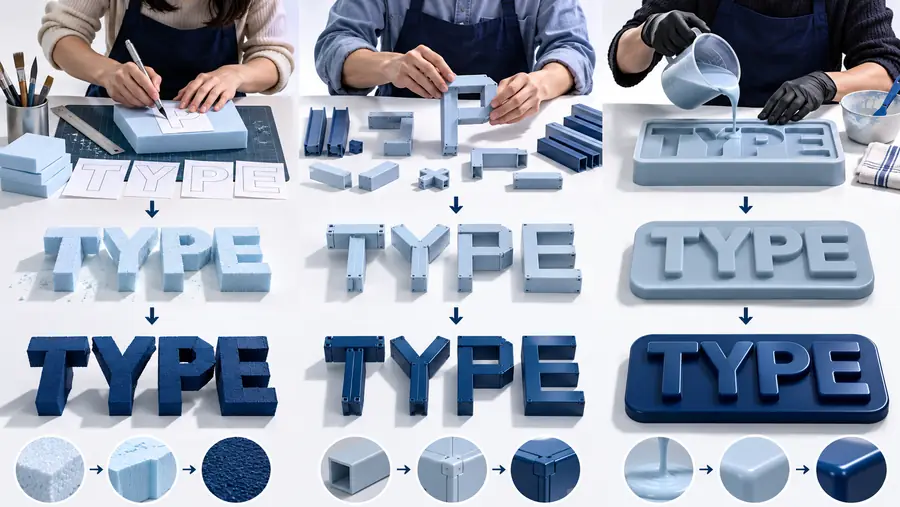
Illustration of comparing approaches to making three-dimensional text
Example of a name keychain design with connected raised lettering
Inspect the design

These images illustrate a decision and an example design, not measured before-and-after output from two tools. For your own comparison, use the same words, font size and intended print dimensions, then inspect both results in a slicer.

Explore another way to shape 3D text

Texttostl links to a 3D text generator you can evaluate against your current workflow. Try a short piece of lettering, then verify the available export format, inspect the geometry and account for any work needed before printing.

  • Compare with the same words and intended dimensions
  • Check export options before committing to a design
  • Inspect the result in your slicer

Comparison FAQ

Start with the file you ultimately need: confirm that the tool offers an export your next application can use. Then compare control over font, thickness, backing and dimensions, along with any repair needed after export. Current access terms matter too, but a low-friction preview is not a substitute for a usable file.

Not necessarily. A 3D text generator creates a model from lettering, while an STL converter or export function produces a particular file format. Check the specific tool’s current download options rather than assuming every model preview can be saved as STL.

CAD is often worth the setup when you need exact dimensions, mounting features or a design you will revise repeatedly. It also lets you control how letters join a backing. For a simple one-off label, that extra control may take more time than it saves.

It might help if the new workflow gives you better control over letter thickness or connections. It will not fix a design that is too small for your printer’s settings on its own. Slice the revised model at its intended size and check the vulnerable details before printing.

Enter the same wording and aim for the same final dimensions in each tool. Compare the resulting exports, the editing steps required and how each model appears after slicing. Include the time spent fixing geometry, not only the time spent making the first preview.

Create 3D text
Create 3D text